Pairing devices
Motorized blinds and gates can be dangerous. They can cause serious bodily injury and property damage, especially if their motion is obstructed by people, pets or objects. If your motor or controller supports obstruction detection make sure it's enabled and working (see official manuals). Make sure endstops are properly working.
If you plan to implement any automations which will cause the covers to move unattended then make sure all household members are aware of them. If you use blinds for balcony doors there exists a risk of locking yourself out from your house.
While the author makes every effort to ensure the software works correctly, remember that: THERE IS NO WARRANTY FOR THE PROGRAM, TO THE EXTENT PERMITTED BY APPLICABLE LAW. EXCEPT WHEN OTHERWISE STATED IN WRITING THE COPYRIGHT HOLDERS AND/OR OTHER PARTIES PROVIDE THE PROGRAM "AS IS" WITHOUT WARRANTY OF ANY KIND, EITHER EXPRESSED OR IMPLIED, INCLUDING, BUT NOT LIMITED TO, THE IMPLIED WARRANTIES OF MERCHANTABILITY AND FITNESS FOR A PARTICULAR PURPOSE. THE ENTIRE RISK AS TO THE QUALITY AND PERFORMANCE OF THE PROGRAM IS WITH YOU. SHOULD THE PROGRAM PROVE DEFECTIVE, YOU ASSUME THE COST OF ALL NECESSARY SERVICING, REPAIR OR CORRECTION.
Pairing a motor with uni-gtw works similarly to adding a new remote to the motor. The device must be switched into programming mode and learn the gateway's rolling code.
Step 1: Create a new channel in uni-gtw
Access the gateway's web interface. Click on the "+ New" button on the main page. A form allowing you the set up the channel should appear. Each channel works like a virtual wireless remote. You should create a separate channel for each of the devices you wish to control.
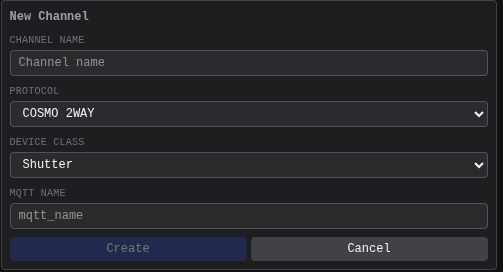
The most important option is the choosing the RF protocol, it depends on when the device you wish to control was manufactured. See table below if you need help choosing.
| COSMO | COSMO | 2WAY | |
|---|---|---|
| Manufacturing date | before 2017.06 | after 2017.06 |
| Example remote | 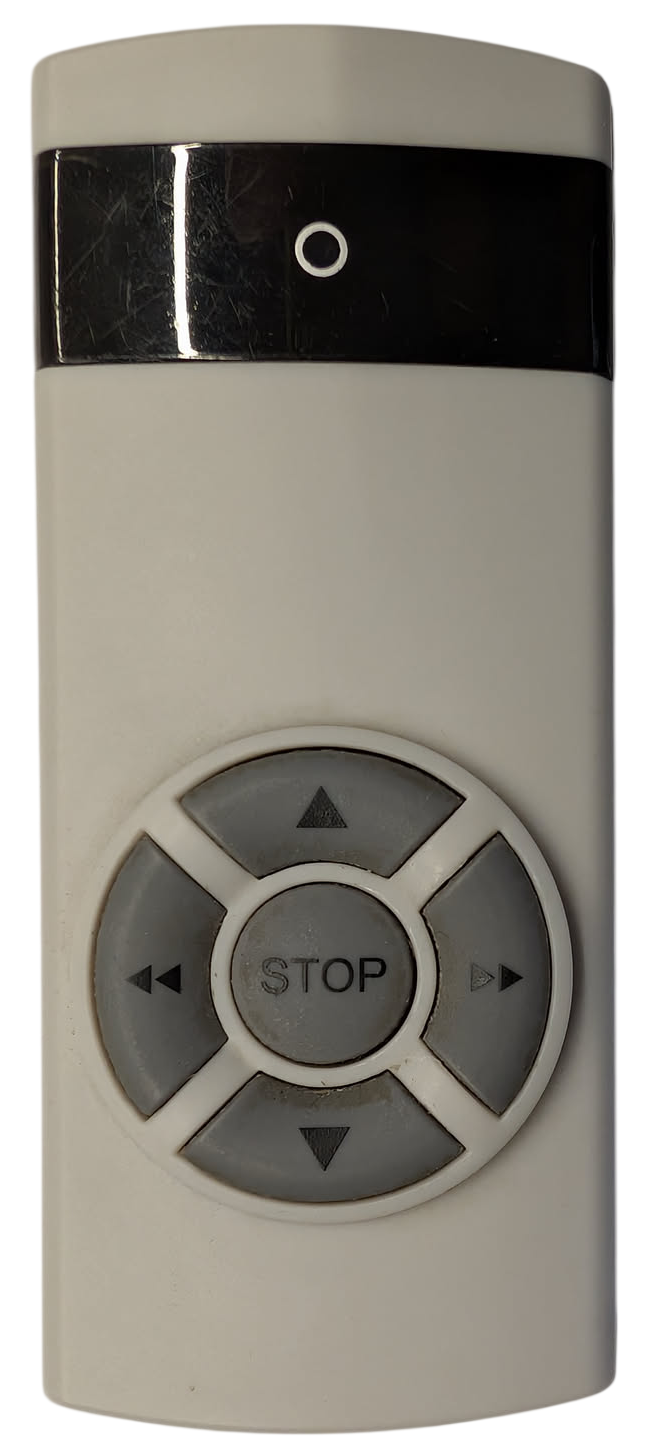 | 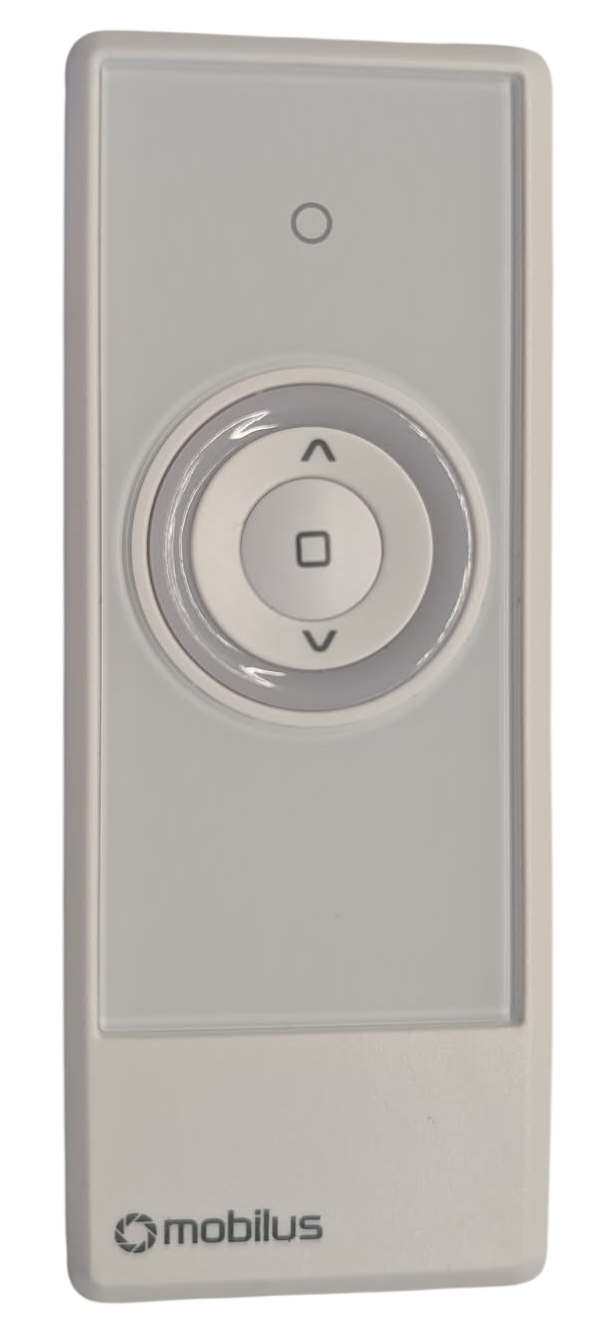 |
| Known devices | Modules: Cosmo E Motors: Older ERS, and MR motors. | Modules: C-MR, C-GR, C-AR, C-ZR, C-SW, C-SW-2, C-ZAR, C-MR, C-MR BT HK, C-ZR Motors: ERS, MR, MR TUYA, |
The "Channel name" field controls how the device will be named in Home Assistant, while "MQTT name" controls the entity name. The "Device class" mainly controls which icon the device will use in Home Assistant. The exception is "Light" and "Switch", which will change the entity from cover to light or switch. This is useful for C-SW, C-SW-2 receivers. "Hidden" will not expose the channel over MQTT, useful for testing without polluting your HA devices list.
Step 2
Option A: Pair the gateway as a secondary remote (recommended)
Use this step if you already have a wireless remote paired (as a MASTER remote) for your blinds.
- Use the existing MASTER remote enter programming mode - press and hold STOP and UP for 5 seconds. The blinds wobble once up and down (some controllers also beep or light up a led).
- Press the Stop+Up button on the gateways web interface. The device should also wobble to confirm pairing.
- Exit the programming mode - press and hold STOP and UP for 5 seconds. The motor should also exit programming mode automatically after a few seconds.
See the official manual for your device on the Mobilus website for more information about entering programming mode.
To unpair the device from the motor's memory you can repeat the procedure with the same channel.
Option B: Pair the gateway as a MASTER remote.
Use this step if you don't have a wireless remote paired with the blinds and want to use uni-gtw as the only controller for them.
Factory resetting the device will cause all paired remotes to be removed. Endstop positions and other settings also might be lost.
- Factory reset the device you wish to pair with. This usually can be done by pressing and holding the button on the device, or cutting mains power two times in short interval (for inaccessible motors).
- Press the PROG button on the gateways web interface. The device should also wobble to confirm pairing with the gateway as the MASTER remote.
- Exit programming mode. To do that press the PROG button on the gateways web interface. The gateway is now the MASTER remote for the motor.
See the official manual for your device on the Mobilus website for more information about factory resetting your device.
If you need to pair more remotes with the blinds you can press the PROG button to tell the device to enter programming mode.
Step 3: Done
uni-gtw should now be able to control your blinds. You can use the UP and DOWN buttons on the web panel to test the functionality.